A PDF can look like ordinary text but behave like a photograph. This often happens when pages were scanned as images. Knowing the difference between an image-only scan and a searchable PDF helps you choose the right workflow for finding, copying, and reviewing information.
What is an image-only scan?
An image-only PDF stores a picture of each page. You may be able to zoom in and read the page, but the words are not necessarily stored as text. Try selecting a sentence with your cursor or using the PDF reader’s Find command. If neither can locate a word that is clearly visible, the document may be image-only.
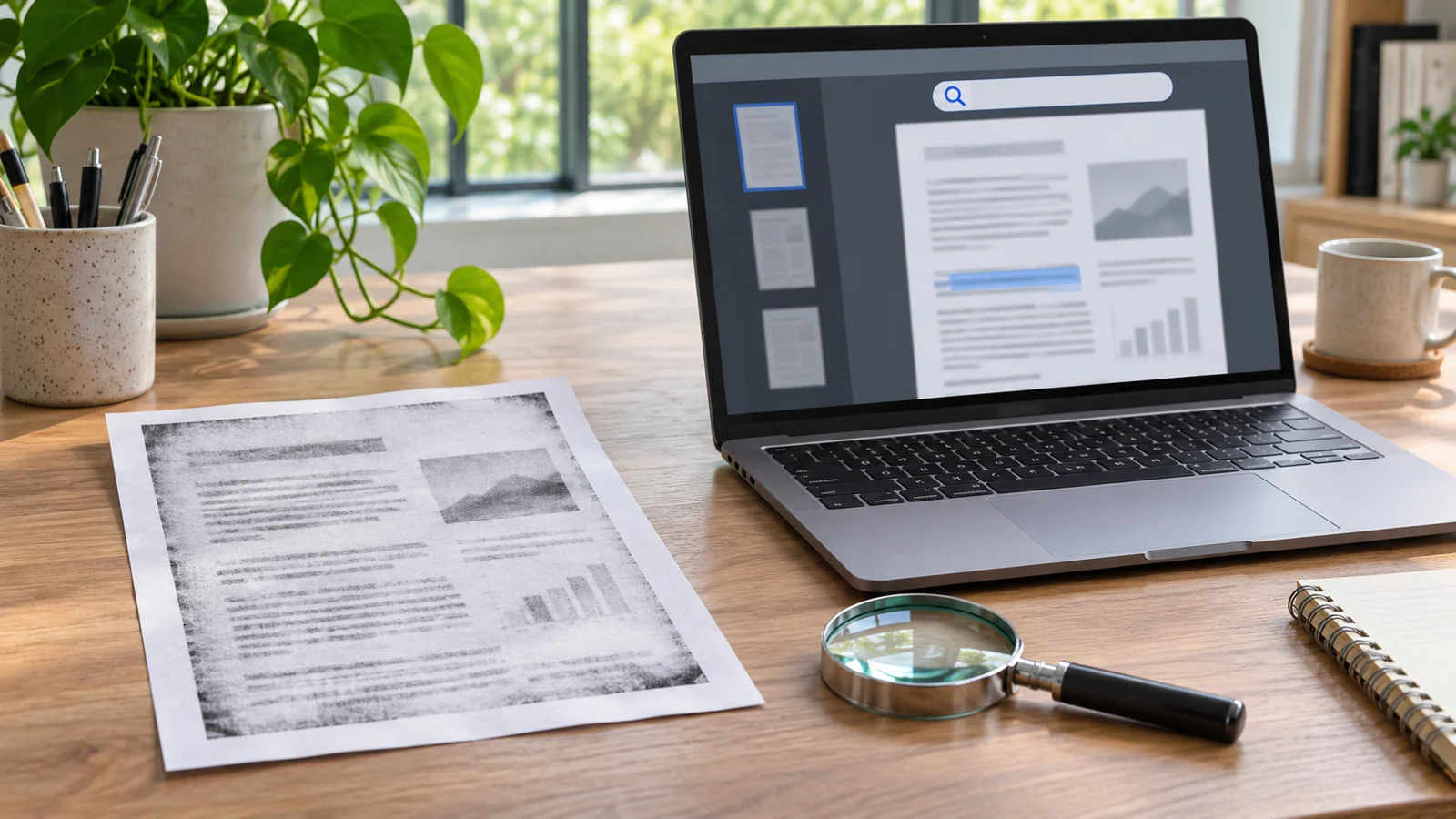
What OCR does
Optical character recognition (OCR) analyzes a page image and attempts to create a text layer. With OCR, a reader may be able to search for words or copy text. Recognition is not perfect: skewed pages, handwriting, stamps, low contrast, unusual fonts, and multi-column layouts can lead to errors.
Check a document after OCR
- Choose a copy of the file and retain the original scan.
- Run OCR only with a tool or service approved for the document’s privacy level.
- Search for several words that appear on different pages.
- Copy a short passage and compare it with the page image, especially names, dates, numbers, and punctuation.
- If the PDF will be used with assistive technology, check reading order and tags as well; searchable text alone does not make a document fully accessible.
Images to PDF does not perform OCR
SupUser’s Images to PDF tool places JPG or PNG images onto PDF pages. It does not turn the words inside those images into searchable text. If you need OCR, choose a dedicated OCR workflow and review the recognized text before relying on it.
Privacy matters when using OCR
Some OCR services process files on a remote server. Before uploading a private record, check the service’s file-handling terms and your organization’s rules. For sensitive documents, use an approved local or enterprise tool. Do not assume a PDF is private simply because it has a password or is hard to search.
Quick check
- Can you select a word?
- Can Find locate it?
- Does copied text match the page image?
- Are the important names and numbers recognized correctly?
Keep the original scan, and treat OCR output as a draft until you have compared it with the source pages.
A note on file handling: Keep a backup of each source document, and inspect any downloaded result before sharing it.